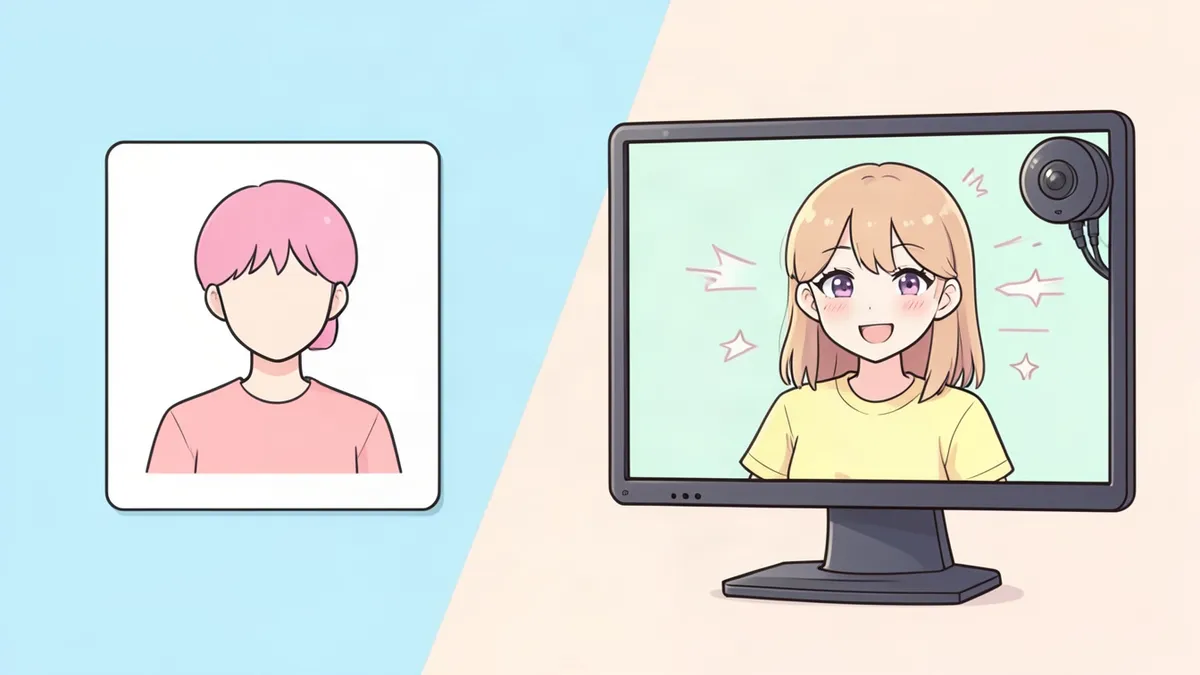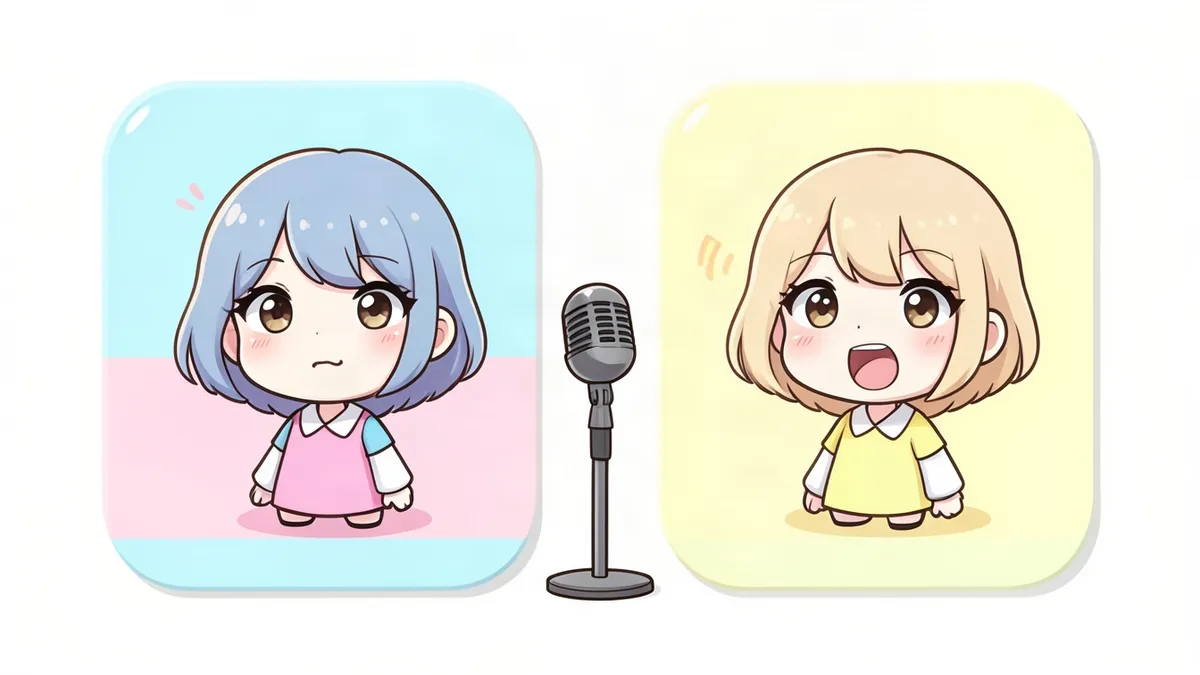
A Discord PNGTuber is a two-image avatar that swaps between idle and talking when you speak in a Discord voice channel. It usually appears on a stream, and it needs nothing more than two transparent PNGs and a voice channel. If you've never set up a PNGTuber, our general guide on how to make a PNGTuber covers design and standalone apps. This article is only about the Discord side.
First, a note on what we could read. We read the sources below on November 3, 2026. Discord's help center would not load for our tools, so we couldn't check it. None of the Discord pages we could open describe a built-in PNGTuber feature, so the setups below rely on other tools, and you should check each against its current page.
Which of the three setups you want
"Discord PNGTuber" can mean two different things. One is an avatar on your stream that reacts to your Discord voice. The other is an avatar your friends see inside a Discord call.
| Setup | What viewers see | What you need | Best for |
|---|---|---|---|
| Reactive image link | Your avatar in your streaming app | A third-party site, a Discord login, two PNGs | The simplest stream setup |
| StreamKit overlay with custom CSS | Your avatar in OBS | Discord open, image links, generated CSS | Collabs where several people bounce |
| OBS Virtual Camera | Your avatar as a camera feed in Discord | OBS plus a voice-reactive PNGTuber scene | Friends in a call |
Discord's developer docs show why voice channels are the shared piece. They list SPEAKING_START and SPEAKING_STOP events, sent when a user in a subscribed voice channel starts or stops speaking. We didn't confirm which of these tools use those events, but it fits how they behave: most of them only work while you're in the channel.
Make the two images first
Every setup starts with an idle image and a talking image, in the same spot on the same canvas. You can draw them or commission them. You can also use our PNGTuber Maker.
We read that tool's code on November 3, 2026. We didn't generate anything or test its files in Discord. Here is what the code does.
- Idle is always included, and you tick the other frames you want: talking, blink, happy, sad, surprised, angry and embarrassed.
- Each frame costs 2 credits. Idle plus talking is 4 credits, and the full set of 8 is 16.
- A new account's 2 free credits cover the idle frame only, so a working pair means buying credits. The tool needs an account.
- Each file is a 1024 x 1024 transparent PNG. There's no size menu on this tool, so resize it yourself if a setup asks for something smaller.
- Choose Bust or Half body under Framing. If a frame fails, its credits come back.
- The talking frame is redrawn from idle, with instructions to keep the pose, framing, size and position and change only the face. It's a redraw and could still shift slightly, so flip between the two files before you set anything up.
You only need the first two frames for the setups below. The extras matter if you later move to an app that handles more expressions.
Setup 1: a reactive image link
Streamlabs published a walkthrough for this route, written around Reactive by FugiTech, and its page shows a last update of July 8, 2026. When we opened the Reactive site ourselves, we could see only its name, an Images link and a Log In With Discord button. So the steps here come from Streamlabs' guide and not from our own use.
- Go to the Reactive Images page and log in with your Discord account.
- Upload your two PNGs, one talking and one not talking.
- Join a Discord voice channel before you stream. Streamlabs suggests a private one, so nobody interrupts.
- In your streaming app, add a Browser Source and name it something like PNG Avatar.
- Copy the Individual Browser Source link from the Reactive page into that source's URL field.
- Talk. The avatar should switch when your microphone picks up sound.
- Leave the voice channel when you're finished.
Streamlabs warns that if you skip the voice channel, the avatar won't appear. Its guide is written for Streamlabs Desktop. Other streaming apps with a browser source may work the same way, but we didn't check that.
This is a third-party site, and you're giving it access through your Discord login. Read what it asks for on the permission screen before you accept.
Setup 2: StreamKit overlay with custom CSS
Discord's StreamKit overlay page describes "Overlay for OBS & XSplit" and "three customizable Discord widgets for your stream," with an install button for each app. That was all the page showed us, so we can't list the widgets for you.
Custom CSS is what turns a widget into a PNGTuber. sireoh's PNGTuber Generator on itch.io is one free example. It's a browser tool that writes CSS for OBS and Discord StreamKit, aimed at simple bouncing avatars for collabs or personal streams.
From its page and comments, here's what to expect:
- You'll give it links to your images, so they must be hosted somewhere. Its author says image hosts work as long as you have the link, and one user found that certain links stopped the overlay from showing at all.
- Discord has to stay open.
- Your images only show while you're in the chosen voice channel.
- OBS 29 changed how CSS works, and older versions of the tool broke. The tool was rewritten in version 0.51 to deal with that.
- One commenter saw the talking image appear while the idle one didn't, and the comments show no confirmed fix.
Choose this setup if a group wants all its avatars on one stream, since the setup is tied to a voice channel instead of to one person's app.
Setup 3: show the avatar in a Discord call
The first two setups put your avatar in front of stream viewers. To get it into the call itself, you need it to act as a camera.
OBS's knowledge base says Virtual Camera shares your OBS scene with apps that use a webcam, and it names Discord as one. You start it with the Start Virtual Camera button in the Controls dock. The settings gear lets you output the Program, a single scene or a single source.
- Build a scene in OBS with a voice-reactive PNGTuber. Setup 2 is written for OBS, and our PNGTuber guide has other OBS methods.
- Click Start Virtual Camera.
- In Discord, join a voice channel and choose OBS Virtual Camera as your camera. Eklipse's guide describes this step, and it's a third-party page dated May 2024, so menu names may have changed.
We didn't test how transparency appears in a call. A webcam feed is normally a full rectangle, so give the scene a background color you like.
Go Live is a different thing. Discord's classroom guide describes it as sharing a window or screen from a voice channel: select the monitor icon, choose what to share, then click Go Live. It says up to 50 people can watch and that they see only what you're sharing. So you could share an OBS window that way, and it won't replace your camera tile.
Problems to check first
These come from the guides above, so they cover the common cases and not every case.
- The avatar is missing: check that you've joined the voice channel. Both setup 1 and setup 2 depend on it.
- The overlay is blank: check that your image links open on their own.
- The two images jump: your idle and talking files aren't aligned. Fix this in an image editor by placing both on the same canvas.
- Nothing in the call: OBS must still be running with Virtual Camera on.
For the character itself, see character design tips. If you're unsure whether to go further, read PNGTuber vs VTuber.
FAQ
Does Discord have a built-in PNGTuber feature?
We didn't find one on the Discord pages we could read, though we couldn't open Discord's help center. The setups we found combine Discord with a third-party site, custom CSS or OBS.
Can I be a PNGTuber on Discord for free?
sireoh's generator describes itself as free, and you can draw your own two PNGs. We didn't see a price on the Reactive page we opened. Our PNGTuber Maker is paid after the free credits, at 4 credits for an idle and talking pair.
How many images do I need for a Discord PNGTuber?
Two, for the setups here: one with the mouth closed and one with the mouth open. Streamlabs' guide uses exactly that pair.
Do my friends see my PNGTuber in a voice call?
Not with a stream overlay. For them to see it in the call, you need to send it as a camera feed, such as with OBS Virtual Camera.
Sources
Last checked November 3, 2026.
- PNGTubers: How to Use Discord Reactive Images, Streamlabs
- Reactive, FugiTech
- StreamKit Overlay, Discord
- RPC documentation, Discord Developer Docs
- How to use Discord for your classroom, Discord
- PNGTuber Generator, sireoh on itch.io
- Virtual Camera guide, OBS Knowledge Base
- OBS Virtual Camera: How to Setup and Use it on Discord, Eklipse