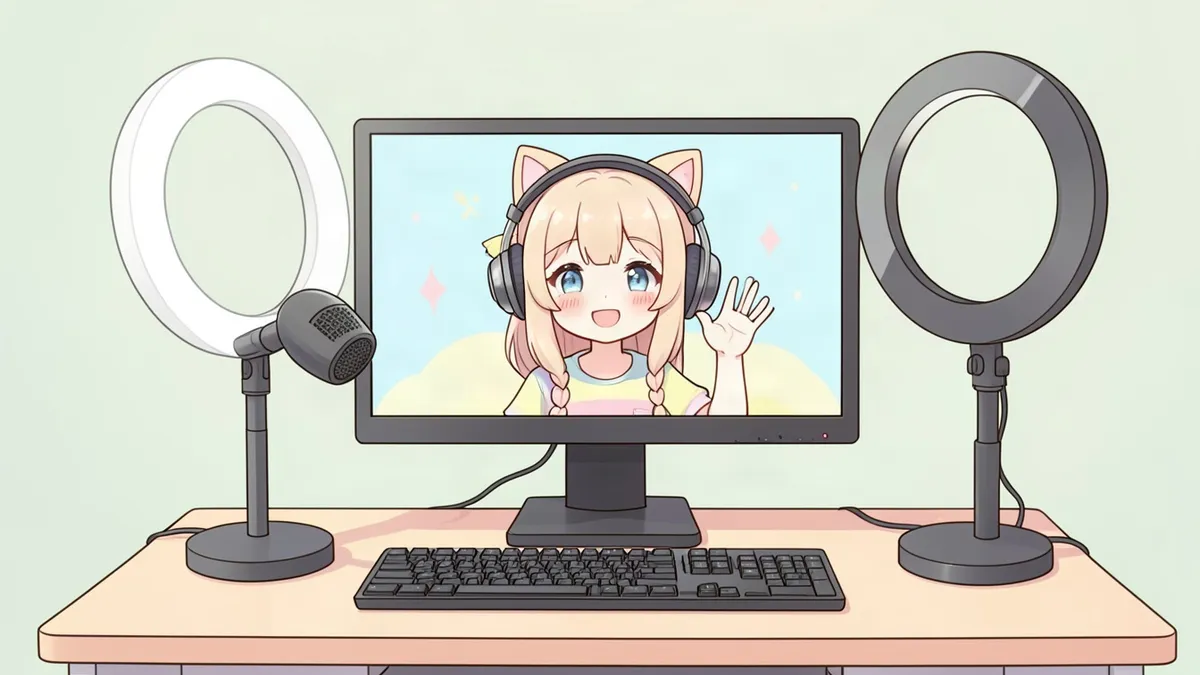
PNGTubing is the easiest way to stream as a character. You don't need an expensive model, rigging software or a face-tracking setup. All you need is a couple of images and free software. This guide explains what a PNGTuber is and walks you through making your own, step by step.
What is a PNGTuber?
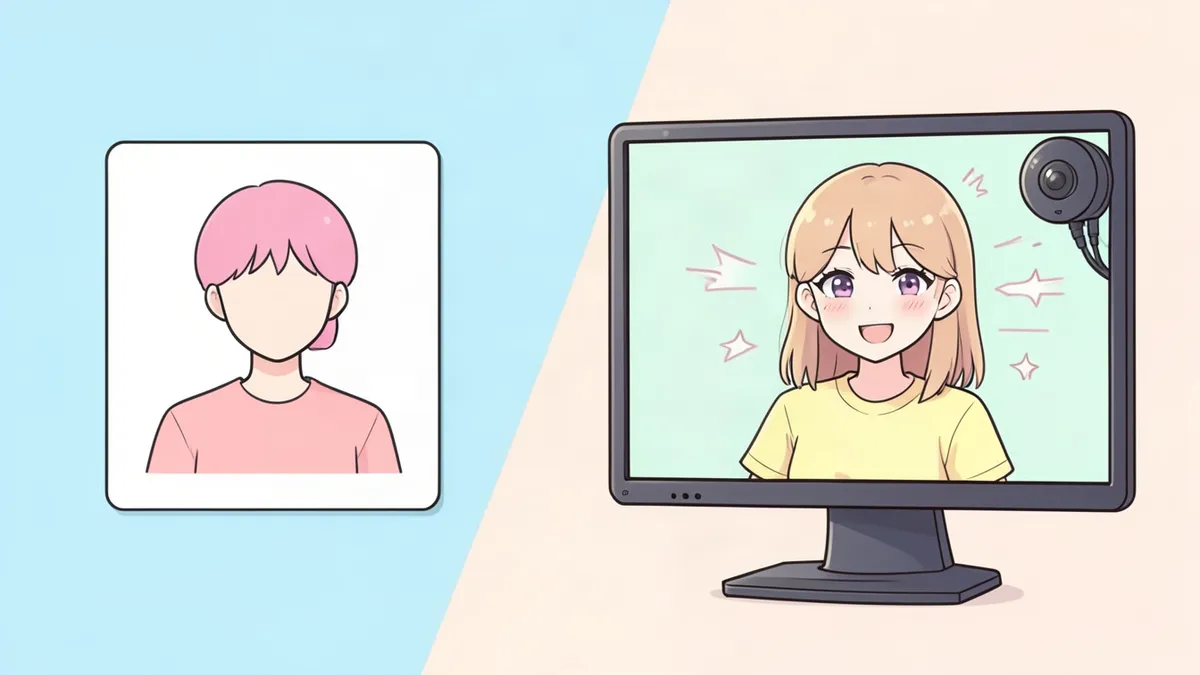
A PNGTuber is a streamer or video creator who appears on screen as a simple 2D image instead of a webcam or a fully animated model. The name comes from the PNG image format, which supports transparent backgrounds.
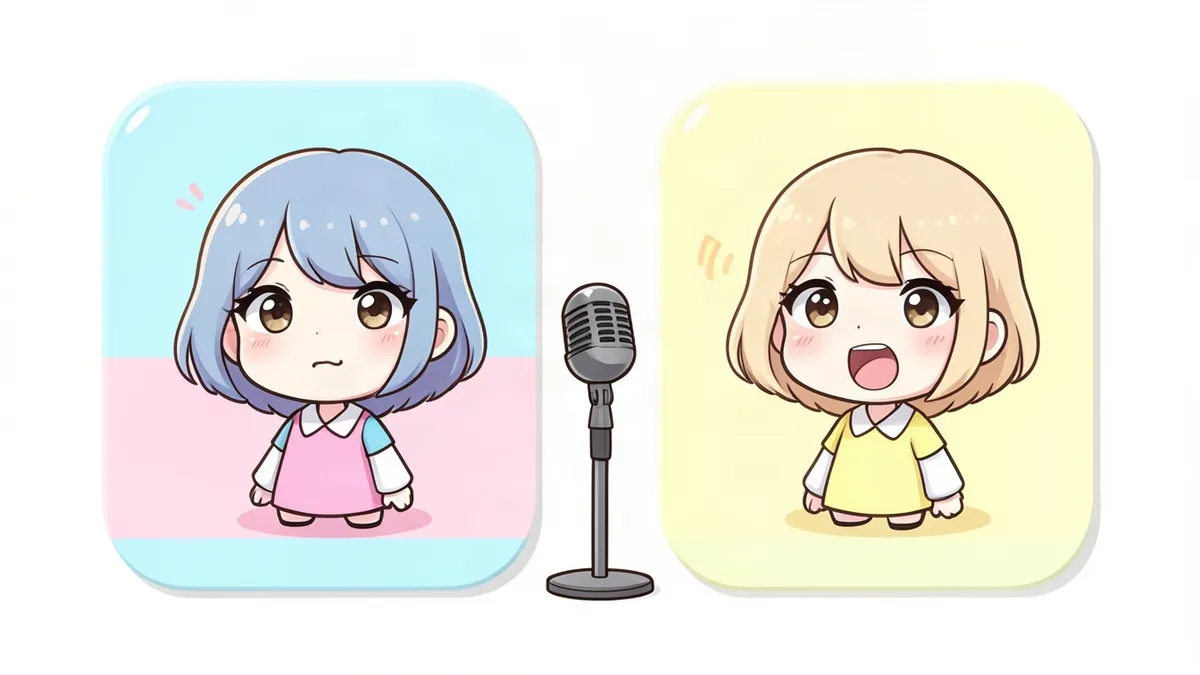
The basic setup uses two images:
- Idle: your character with their mouth closed
- Talking: your character with their mouth open
When your microphone picks up your voice, the software switches to the talking image. When you stop, it switches back. Many PNGTubers add a little bounce when talking, plus blinking frames and extra expressions.
Why choose a PNGTuber?
- Cheap or free. A couple of images and free software are enough.
- Fast. You can be streaming in an afternoon.
- Low-spec friendly. No face tracking means less load on your computer.
- Camera-free. You don't need a webcam at all.
- Easy to update. Want a new outfit for a holiday stream? Just make new images.
Wondering whether to go further? Read PNGTuber vs VTuber.
Step 1: Design your character
Your avatar should be easy to recognize at a small size, since it usually sits in a corner of the screen. Focus on:
- A clear face and expression, since that's what viewers see most
- A bust or half-body framing (head and shoulders, or down to the waist)
- Bold colors and a strong outline so it stands out against busy game footage
- One signature detail: a hat, horns, headphones, a pet on the shoulder
New to character creation? Our guides on how to make an OC and character design tips cover the basics.
Step 2: Create your images
You'll need at least two images of the same character in the same position:
- Idle (mouth closed)
- Talking (mouth open)
Optional extras:
- Blinking versions of both
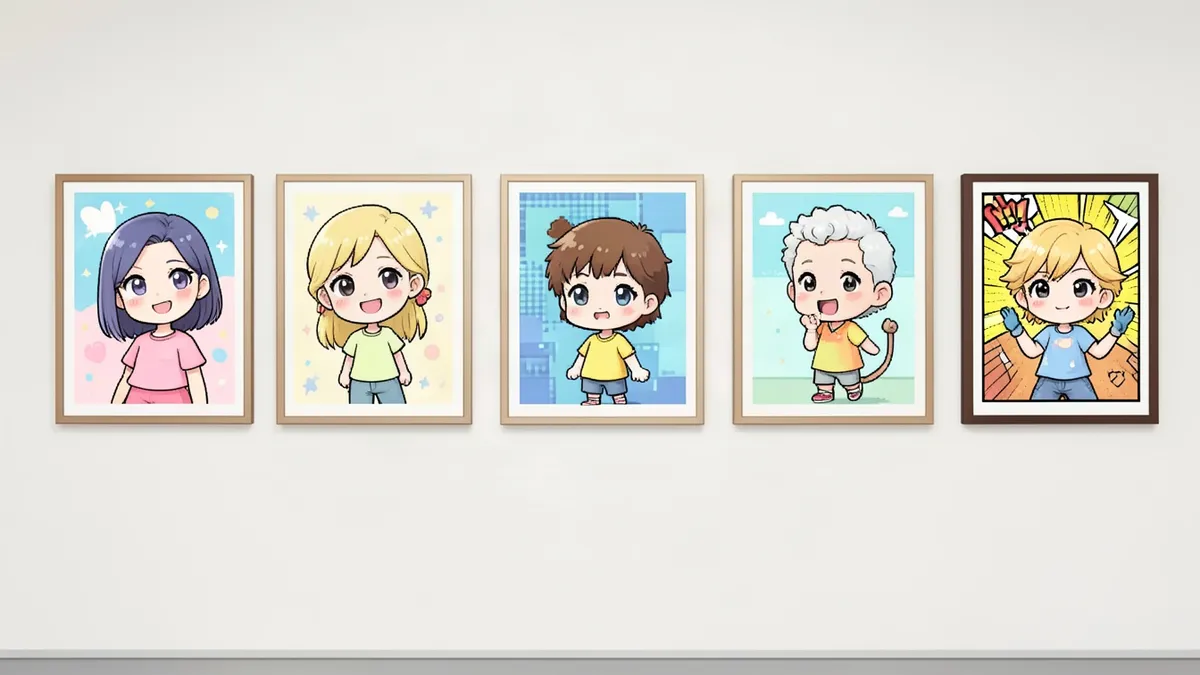
- Expressions: happy, sad, surprised, angry, embarrassed
- Special states: sleeping, eating, holding a drink
Tips for clean PNGTuber images
- Use a transparent background and export as PNG.
- Keep every image the same size and alignment. Only the mouth, eyes or expression should change, or your avatar will jump around.
- Use a canvas big enough to scale down cleanly, for example 1000 to 2000 pixels wide.
- Leave a little space around the character so bounce animations don't cut anything off.
Ways to make the images
- Draw them yourself in any drawing app with layers: draw the base once, then make separate mouth and eye layers.
- Commission an artist. PNGTuber sets are usually much cheaper than rigged models.
- Generate them. The PNGTuber Maker creates matching idle, talking, blinking and expression frames of an original character in one batch, with transparent backgrounds.
Step 3: Choose your PNGTuber software
You have two main options:
Option A: A dedicated PNGTuber app
Free apps like Veadotube mini and PNGTuber Plus are made specifically for this. You load your images, set your microphone sensitivity, and the app switches images and adds bounce effects automatically. Some support hotkeys for switching expressions.
Option B: OBS only
You can also set up a basic PNGTuber directly in OBS Studio using a plugin or a browser-based tool that switches images based on audio. This takes a little more setup but avoids running a separate app.
Step 4: Add your PNGTuber to OBS
If you use a PNGTuber app:
- Set the app's background to a solid green (or use transparent capture if supported).
- In OBS, add a Window Capture source for the app.
- Add a Chroma Key filter to remove the green background.
- Resize and position your avatar in a corner of your stream layout.
Step 5: Tune your microphone settings
- Adjust the voice threshold so the talking image triggers when you speak but not from keyboard clicks or background noise.
- Add a small delay before switching back to idle so your avatar doesn't flicker between words.
- Test with a recording before going live.
Step 6: Add personality
- Bounce or shake when talking makes a static image feel alive.
- Expression hotkeys let you react to big moments in your stream.
- Seasonal outfits keep things fresh and are fun for viewers.
FAQ
What is a PNGTuber?
A PNGTuber is a streamer who uses a simple 2D image as their on-screen avatar. The image switches between idle and talking when the streamer speaks.
How do I make a PNGTuber for free?
Draw two images of your character (mouth closed and mouth open) with transparent backgrounds, then load them into a free PNGTuber app or set them up in OBS Studio.
What size should PNGTuber images be?
A canvas around 1000 to 2000 pixels wide works well. Make sure all images are exactly the same size and alignment.
Do I need a webcam to be a PNGTuber?
No. PNGTubers react to your microphone, not your face, so no camera is needed.
Can a PNGTuber become a VTuber later?
Yes. Many streamers start as PNGTubers and upgrade to a rigged 2D or 3D model later. See our guide on how to become a VTuber.